Double booking: how to review a client's scheduling setup
Quick answer
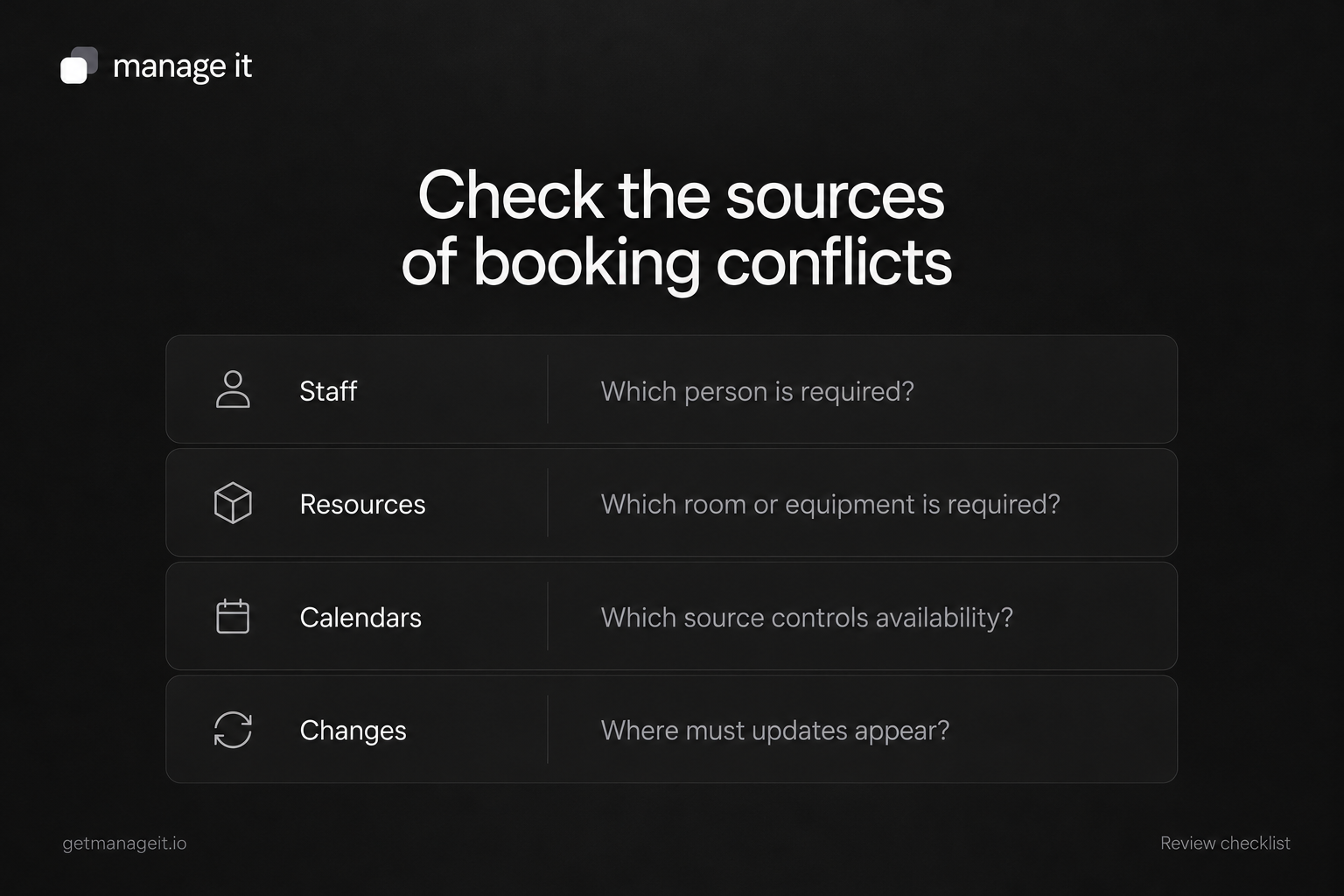
Identify every place appointments can be created and which source controls availability.
Check the people, rooms, equipment, travel time, and preparation each service requires.
Test calendar conflicts and changes in the actual setup; one connected calendar does not establish coverage for every resource.
Map booking sources, staff availability, shared resources, and calendar checks to find scheduling conflicts before handing a setup to your client.
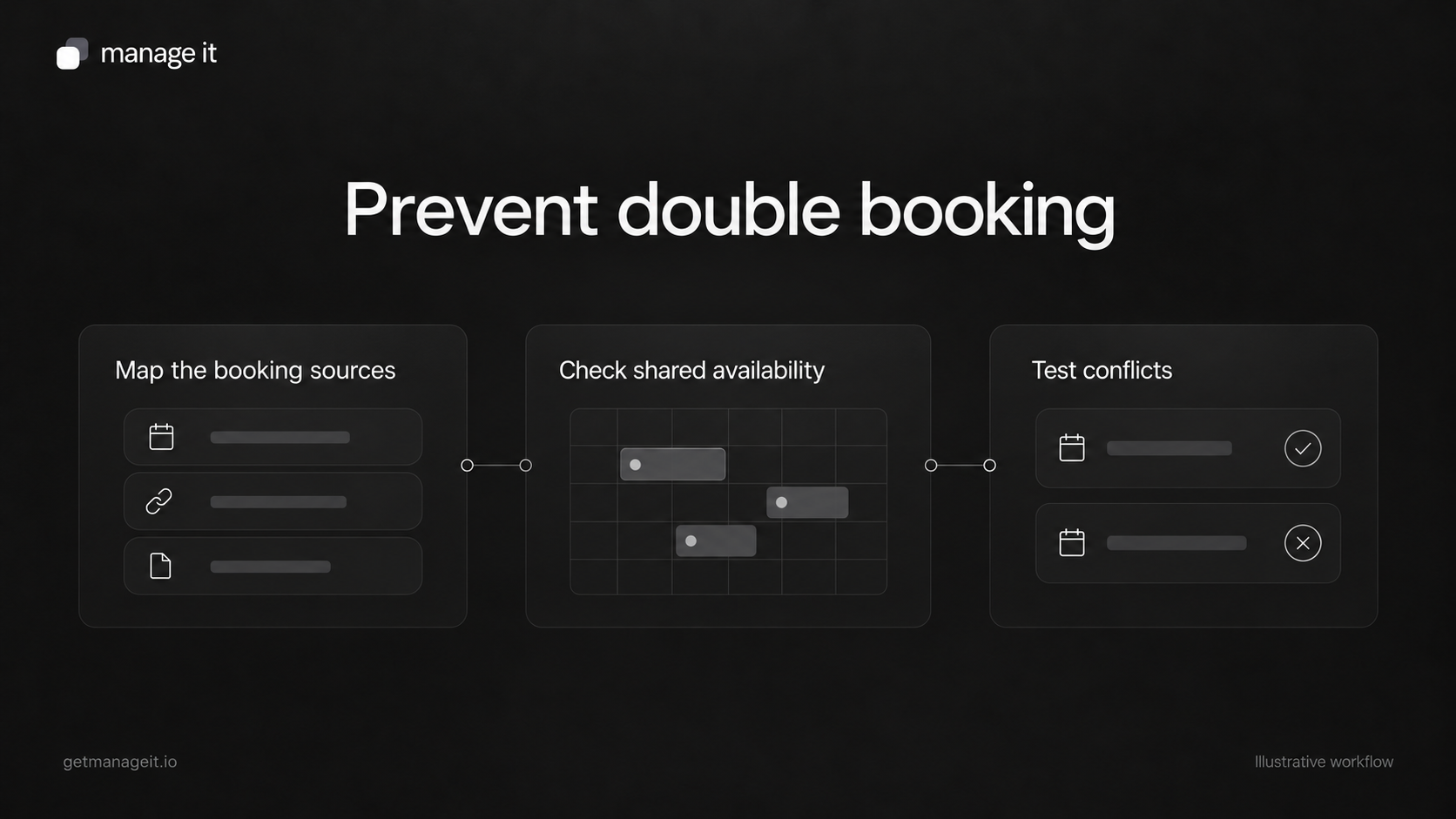
A client can have two valid-looking appointments that still cannot both happen. The same staff member may be required, a shared room may already be occupied, or travel time may make the second visit impossible.
Preventing double booking starts with understanding what the business is promising when it offers a slot. Your agency can then configure and test the scheduler against those requirements.
Map every booking source
Ask the business where appointments originate: the website, phone, walk-ins, a marketplace, a staff calendar, or another booking tool.
For each source, record who creates the booking, where it is stored, and how the other sources learn that the time is no longer available. Include manual bookings. A phone appointment entered only in a notebook will not block an online calendar unless someone transfers it through the agreed process.
Choose the authoritative record for each kind of booking. Staff should know where to check and where to make changes. Keeping several calendars is manageable only when their roles and update paths are understood.
Define what makes a slot available
For each service, complete this short worksheet:
Person: Which staff member or eligible group can perform the service?
Place: Is a specific room, studio, workshop bay, or customer location required?
Equipment: Is anything shared with another appointment?
Duration: How long is the service itself?
Buffer: What time is needed for setup, cleanup, or travel?
Limits: How many bookings can the business accept in a day or week?
Approval: Can the booking be confirmed immediately, or must staff review it?
For example, a photography studio may have two photographers but only one room suitable for a particular session. Both photographers appearing free does not mean two sessions can run at once.
Check what the connected calendar actually checks
Google Calendar's availability guidance distinguishes selected calendars, busy events, and conflict-check settings. Those distinctions explain why “the calendar is connected” is only the beginning of a review.
Verify which calendar is connected, which events count as busy, whether secondary calendars are checked, and how an all-day absence affects slots. Don't assume that an event marked free should block an appointment.
ManageIt's Google Calendar integration describes checking calendar events for availability and creating an event for a confirmed booking. Its scheduler page also states that booking continues if Google is unreachable. That means external-calendar availability should not be treated as guaranteed during an outage. Agree on how the business checks or handles conflicts in that situation.
Distinguish team assignment from calendar coverage
ManageIt documents owner-only, round-robin, and manual team assignment. Assignment determines who gets the booking. It does not, by itself, prove that every person's own calendar was checked.
The public team guide and roadmap differ on per-member calendar availability. If a client needs that behavior, verify it in the account before relying on it. Check shared rooms and equipment separately; a staff-calendar check is not a resource-reservation test.
Use manual approval or another suitable process when the booking requires a check the configured system cannot make. Explain that step in the customer message so a request is not mistaken for a confirmed appointment.
Run a conflict test matrix
Use controlled calendar events and test bookings. Record the expected result, actual result, and any manual step for each case:
Busy event: Put a busy event on the checked calendar. The overlapping time should behave according to the selected conflict rules.
Free event: Confirm whether an event marked free leaves the slot available as intended.
All-day absence: Check the effect on the booking day.
Secondary calendar: Test an event on each additional calendar the business expects to count.
Manual booking: Enter a phone appointment through the supported staff process and check the public slots.
Buffer: Book a service and inspect the surrounding preparation or travel time.
Shared resource: Try two services requiring the same room or equipment.
Reschedule: Move an appointment and verify both the old and new times.
Cancellation: Cancel a booking and check when the slot becomes available again.
Unavailable integration: In a safe test setup, check the documented fallback and staff response when a calendar connection cannot be used.
ManageIt's scheduler configuration includes buffers, notice periods, date overrides, and daily or weekly booking limits. Those controls should match the worksheet, not remain at defaults simply because the booking page looks ready.
Give staff a clear change procedure
Name the person who resolves a conflict and the place staff record the correction. Have them check customer messages and future reminders after a move. A diary correction that leaves the old email sequence running is only part of the fix.
For a new website implementation, use the booking launch guide. For the immediate customer message, use the confirmation templates.
The handoff should explain which conflicts the setup checks, which still require staff review, and how the business handles a change. That is more useful than an unqualified promise that overlapping bookings can never happen.