How to add appointment booking to a client's website
Set the booking rules, add a public link or supported embed, test the customer journey, and hand the setup over to your client's staff.
Quick answer
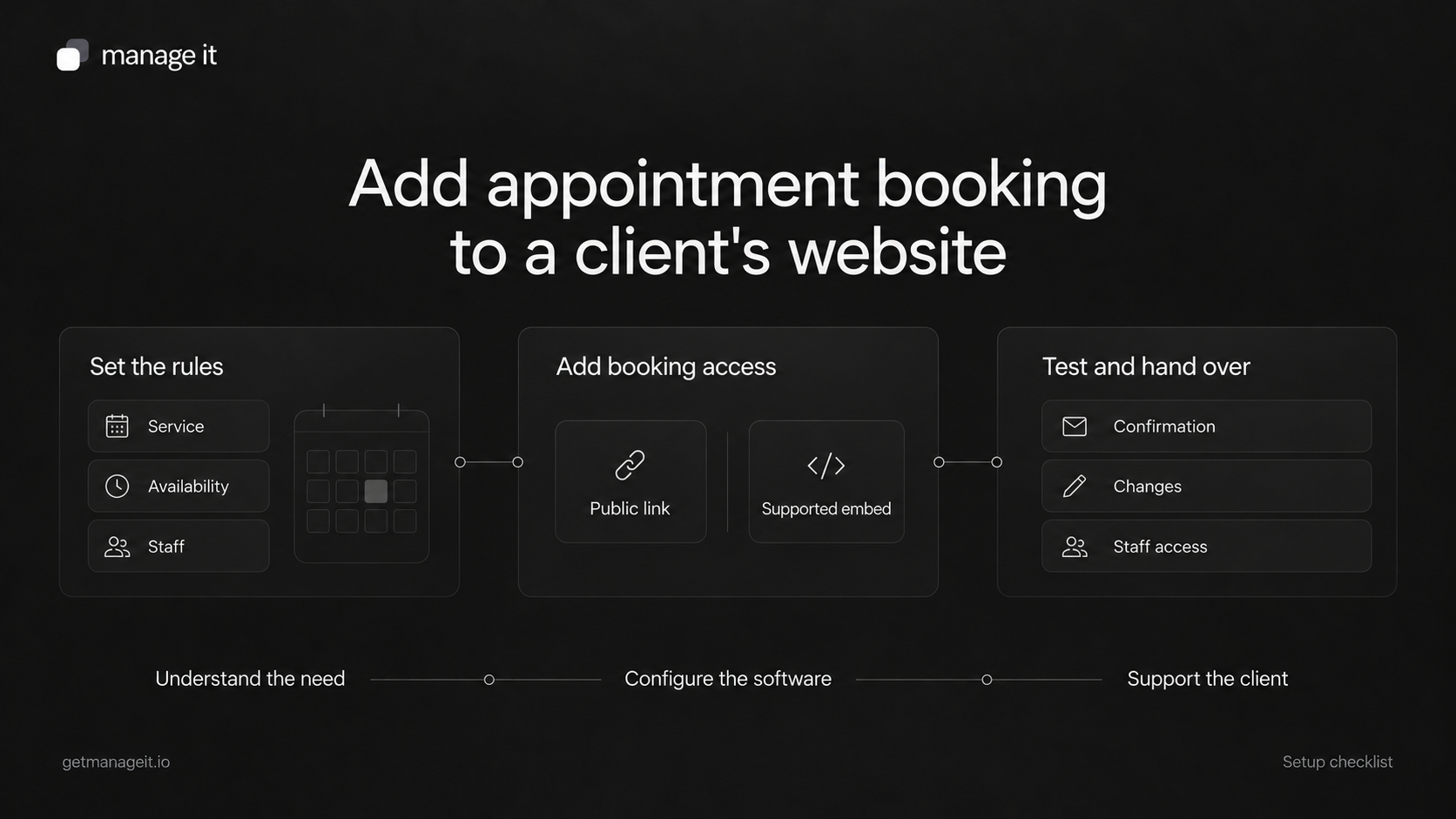
Agree on the service, availability, and booking rules before adding anything to the website.
Link to a verified public booking page, or use the provider's supported embed.
Test confirmation, changes, cancellation, and mobile use, then show the client's staff how to manage the setup.
Adding appointment booking connects the website you built to the way your client's business works. Customers need to choose the right service and time. Staff need to know what has been booked, what requires approval, and how to handle a change.
Your client may ask for a booking button without thinking through those details. As their agency, you can identify the decisions, configure the appropriate software, and make sure the team can run it after handoff.
The process below works whether you are adding scheduling to an existing website or including it in a new build. Exact controls depend on the booking provider and website platform. Start with the client's requirements, then follow the provider's instructions for the selected method.
1. Decide what a customer can book
Choose the specific appointment the website should offer. A business that provides several services may need separate appointment types, while a business that quotes each job individually may start with a consultation or assessment.
For example, a portrait studio might let customers book an initial consultation. It may still need to discuss the location, group size, and session requirements before confirming the final photography job. Make that distinction clear on the website and in the booking description.
Service and duration are predictable. Appropriate next step to assess: Let the customer choose an available appointment.
Staff need to review the request first. Appropriate next step to assess: Offer a request or approval process and explain when it becomes confirmed.
The job needs a tailored quote. Appropriate next step to assess: Collect the necessary details or book an assessment.
Use the language customers recognize. “Book a portrait consultation” explains more than “Schedule now.” If someone is requesting a time rather than securing it, say so before they submit.
2. Configure the service and availability
Work through the operating rules with the person who manages the diary. Opening hours alone are rarely the complete booking policy.
Record the appointment duration, assigned staff or resources, location, preparation or travel time, available days, blocked dates, minimum notice, and how far ahead a customer may book. Confirm the timezone displayed to the customer, especially for online appointments or customers in another area.
If the setup uses an external calendar to check conflicts, establish which calendar is authoritative and what happens when it is disconnected or out of date. Do not assume that connecting a calendar also configures working hours, buffers, or every resource requirement.
Those are separate concepts in tools such as Calendly, whose scheduling guidance explains availability, conflicts, notice periods, and buffers. Use the corresponding settings and documentation for the provider you are implementing.
Confirm any price, deposit, cancellation, or approval information with the business. The page should explain the actual arrangement before a customer commits. Only turn on payment collection after the business has confirmed the amount, account, and handling of changes.
3. Get the public booking destination
Find the provider's public page for the intended service or group of services. Copy the sharing URL supplied by the account. An administration page or editor preview is not a customer booking destination.
Open the URL in a signed-out or private browser session. Check that it shows the correct business and service, the intended availability, and an understandable next step. If it requires customer registration, make sure that requirement is appropriate and explained; do not assume every scheduler offers account-free booking.
Complete a controlled test booking at the destination before connecting it to the website. This separates problems with the booking setup from problems introduced by the website integration.
4. Add a clear booking link
A normal website button can open the public booking page. In a site builder, add a link or button block, enter the verified URL, and use a label that names the appointment.
For a custom HTML page, the basic link looks like this:
<a href="https://booking.example.com/portrait-consultation">
  Book a portrait consultation
</a>
The URL is illustrative. Replace it with the actual public booking URL from the client's account; it is not a ManageIt endpoint. Apply the website's existing button style if appropriate.
Put the link where the visitor has enough information to choose the service. A relevant service page is a useful starting point. Keep the wording and destination consistent anywhere else you add it, such as the navigation or contact page.
Publish the page and test the link from the live version. An editor preview may behave differently from the page a customer opens.
5. Use an embed when it suits the website
An embedded scheduler lets a customer interact with booking inside the page. Use the provider's supported code and instructions rather than assuming that any public URL will work inside an iframe.
The implementation usually involves choosing the intended booking page, obtaining its generated code, and placing it in the website platform's approved code or embed block. Presentation options vary: Calendly, for example, documents inline and popup choices in its website integration guide. Those controls are specific to that provider.
ManageIt's scheduler page describes public booking links and iframe embedding with domain allowlists and theme overrides. For a ManageIt implementation, verify the actual sharing URL or embed instructions and the permitted website domain in the client's setup.
Keep a visible direct booking link alongside an embed. It gives customers another route if the embedded interface fails to load. Calendly's embed troubleshooting documentation describes blocked embeds and mobile layout problems, illustrating why the surrounding page needs this check.
Test on the published domain, including the site's actual hostname. A configuration that works on a preview address does not establish that the production domain is permitted.
6. Check the messages and next steps
A customer should understand whether the appointment is confirmed, pending approval, or only a request. Review the on-screen result and any messages separately; one appearing correctly does not prove the other arrived.
For a confirmed appointment, check the business name, service, date, time, timezone where relevant, location, preparation details, and the route for changing or cancelling it. Staff need the corresponding information and a way to find the booking again.
Use a message like this as a starting point, replacing every placeholder with accurate details:
Your [service] with [business] is confirmed for [date] at [time and timezone].
Location: [address or meeting details].
Before your appointment: [relevant preparation].
To change or cancel, use [verified route], subject to [the business's stated policy].
A pending request needs different wording. Say when and how the business will respond instead of calling it confirmed.
If reminders are enabled, agree on their timing and recipient with the business. Then test what happens after a time change or cancellation. Old messages should not continue to describe an appointment that no longer exists in that form.
7. Run the launch checks from both sides
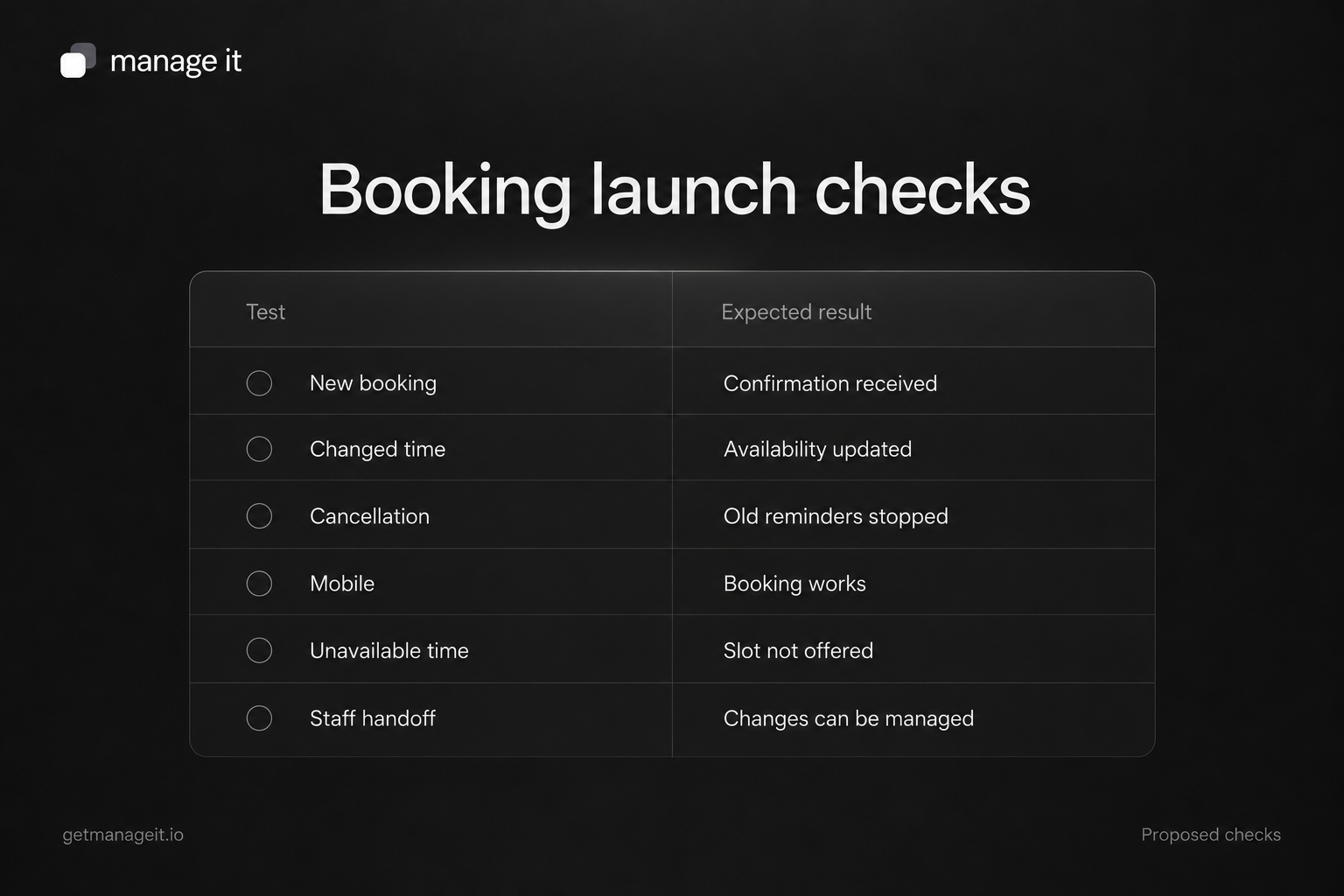
Test as a customer and as the staff member handling the appointment. Record what happened, not just whether the page looked correct.
New booking. What to verify: The intended appointment is recorded, its status is clear, and the expected confirmation reaches the test recipient.
Unavailable time. What to verify: A blocked period is not offered; relevant connected-calendar conflicts behave as configured.
Changed time. What to verify: The new details appear where needed, availability updates correctly, and old reminders no longer describe the previous time.
Cancellation. What to verify: The business and customer can identify the cancellation, and future appointment reminders stop as intended.
Mobile booking. What to verify: The fields, date picker, keyboard, scrolling, and final submission work at a narrow screen width.
Keyboard and zoom. What to verify: Focus is visible, controls and submission are usable, and labels, errors, and important content remain readable.
Blocked embed. What to verify: The direct booking link provides a usable alternative.
Staff handoff. What to verify: The responsible person can find the booking, manage a change, and handle the agreed exceptions.
The keyboard, zoom, and form checks draw on W3C's introductory accessibility checks. They are a useful first review, not a complete accessibility assessment.
Use the booking launch checklist to record the result, evidence, and person responsible for each issue. Its rows start as “Not tested.” Fill them in from the actual client setup.
8. Hand the daily work over to the business
Ask the staff member responsible for bookings to complete the ordinary tasks while you observe: find an appointment, block a date, change a time, and explain what the customer will receive. Fix gaps in the setup or instructions before treating the handoff as complete.
Leave a short record of the public URL, where it appears on the site, who administers it, the booking rules, and who handles technical problems. Use appropriate account access rather than shared passwords. Explain which changes the business can make and when it should contact your agency.
A booking page may also be the next step after a customer inquiry. Make sure the lead-follow-up process stops asking someone to book once the business has recorded their appointment, including appointments arranged by phone.
Use the launch checklist with the client before handoff. It gives both of you a concrete definition of a working booking service and a record of anything that still needs attention.
Copyable booking launch checklist
Copy the CSV below into a plain-text file named booking-launch-checklist.csv, then open or import it in your spreadsheet tool. Every row starts as “Not tested.” Record the actual result and evidence; use “Not applicable” with a reason where a check is outside the setup. Use controlled test recipients and the provider’s supported test facilities, especially for payment checks.
test_id,area,test,expected_result,status,actual_result,owner,evidence,checked_on,notes
B01,Public access,Open the copied booking URL while signed out,Correct business and service appear; any required registration or approval is explained,Not tested,,,,,
B02,Appointment rules,"Review duration, location, timezone, notice, buffers, and booking horizon",Rules match the business's agreed requirements,Not tested,,,,,
B03,Availability,Try an available time and a deliberately blocked period,Available time behaves as intended; blocked time is not offered,Not tested,,,,,
B04,Calendar conflicts,"Where a calendar is connected, test a known conflict and the defined disconnect fallback",Conflict and failure behavior match the agreed setup,Not tested,,,,,
B05,New booking,Complete a controlled booking or request using a test recipient,Correct appointment is recorded; confirmed or pending status is clear,Not tested,,,,,
B06,Notifications,Inspect the customer and staff notifications for the controlled booking,"Expected recipients receive correct service, time, location, and next steps",Not tested,,,,,
B07,Rescheduling,Move the controlled appointment through the supported customer or staff route,New details and availability update; old reminders do not describe the previous time,Not tested,,,,,
B08,Cancellation,Cancel the controlled appointment and inspect future reminders,Cancellation is visible and further appointment reminders stop as intended,Not tested,,,,,
B09,Mobile,Complete the journey at a narrow screen width with the on-screen keyboard,"Fields, date picker, scrolling, and final submission are usable",Not tested,,,,,
B10,Keyboard and zoom,"Navigate and submit with keyboard; inspect focus, labels, errors, and zoom",Controls and content remain usable in this first accessibility review,Not tested,,,,,
B11,Embed and fallback,"If embedding, test on the production hostname and try the direct-link fallback",Allowed domain loads the intended booking interface; fallback link works if embed does not,Not tested,,,,,
B12,Optional payment,"If payment is enabled, use the provider's approved test method and verify the business account and amount",Configured payment behavior and resulting booking status match the agreed requirement,Not tested,,,,,
B13,Staff handoff,"Ask the responsible staff member to find, change, and manage an appointment",Staff can complete agreed daily tasks and explain when to request help,Not tested,,,,,
B14,Maintenance,"Record public URL, website placements, admin owner, rules, support route, and retest triggers",The business and agency have an agreed maintenance record,Not tested,,,,,