Appointment reminder templates to set up for your clients
Use clear appointment reminders for visits, on-site services, and online consultations. Includes original templates and a practical sending checklist.
Quick answer
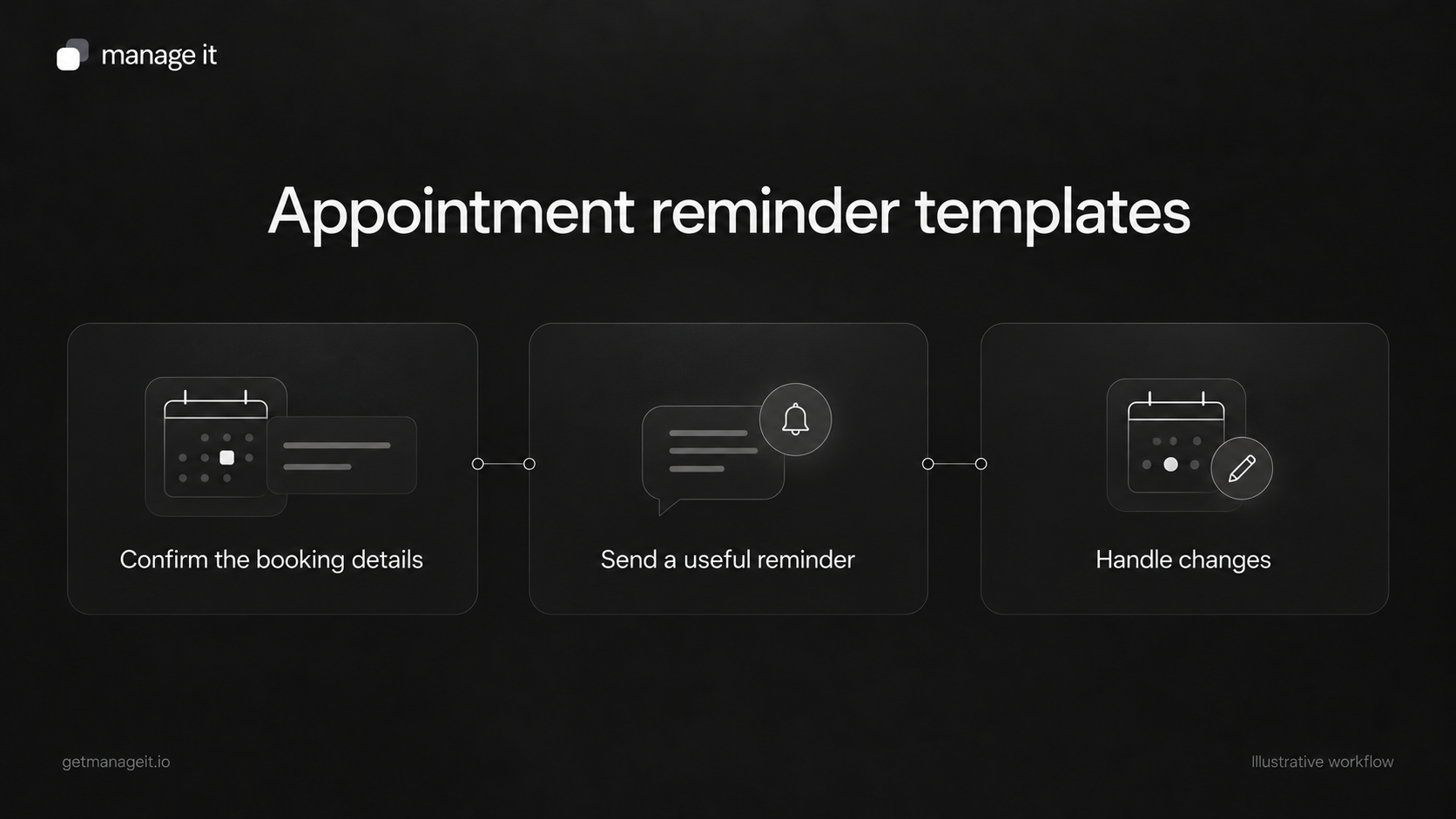
Remind the customer of the current service, date, time, location, and relevant preparation.
Include a working way to change the appointment or contact the business.
Test rescheduled, canceled, and short-notice bookings before enabling automatic reminders.
A reminder is part of the booking service your agency sets up for a client. It should help the customer's next visit go smoothly, with accurate information and a clear route for changes.
The words are only part of the job. A well-written message can still be wrong if it uses an old appointment time, goes to the wrong recipient, or keeps sending after a cancellation.
Use the original templates below as starting points. Bracketed text is a placeholder for your client's real details, not a claim that the software recognizes those exact fields.
Reminder for an appointment at the business
Subject: Your [service] with [business] on [date]
Hi [first name],
A reminder that your [service] with [business] is booked for [date] at [time and timezone, where relevant].
We'll see you at [verified location]. Before you arrive, please [relevant preparation].
If you need to change the appointment, use [verified change route] or contact us at [monitored contact].
Thanks,
[business or staff name]
Keep preparation specific. A photographer might need the customer to bring an agreed item. A repair workshop might need the equipment model or job reference. Delete the sentence if there is nothing useful to prepare.
Include arrival instructions only when they are accurate and likely to matter. A short note about the correct entrance can help more than a promotional paragraph.
Reminder for a visit to the customer's location
Subject: Your [service] visit on [date]
Hi [first name],
We're due to visit for [service] on [date], during the agreed [time or arrival window].
The service address on our booking is [address]. Please let us know through [monitored route] if that needs correcting.
Before the visit, please [agreed preparation]. For questions or a change of plans, contact [staff or business contact].
Thanks,
[business]
Do not turn an arrival window into an exact arrival promise. If staff need access arrangements, use the business's agreed process for collecting them instead of encouraging customers to reply with sensitive access details to an unmonitored inbox.
Reminder for an online consultation
Subject: Your online [service] appointment on [date]
Hi [first name],
Your online [service] appointment with [business] is scheduled for [date] at [time and timezone].
Join using [verified meeting link]. Please have [relevant information] ready.
If the joining link doesn't work, contact [backup contact route]. To request a different time, use [verified change route].
[staff name]
Open the joining link as a customer would. Check any login requirement and whether the link is unique to the appointment. Do not reuse an unrelated meeting link simply because it opens.
A shorter text-message version
[Business]: Reminder—your [service] is on [date] at [time] at [location]. Need a change? [Verified route]. Questions: [monitored contact].
Use the provider's supported messaging settings and the business's appropriate customer communication permissions. Do not add promotional content to an operational reminder by default.
Check the actual message length and how links display on a phone. If the message becomes difficult to read, move detailed preparation instructions to a suitable page or email rather than leaving essential booking details out.
Choose timing with the business
There is no single reminder schedule that fits every appointment. A service that needs preparation may require different notice from a short consultation. A booking made shortly before the appointment needs its own behavior.
Acuity's reminder documentation describes configurable timing and special cases for short-notice bookings. Treat those as reasons to inspect your chosen scheduler's rules, not as settings every platform shares.
Agree on the purpose of each message. If two reminders contain the same information and leave no useful time to act, reconsider the sequence. The business should be able to explain why each message is there.
Check the current appointment before sending
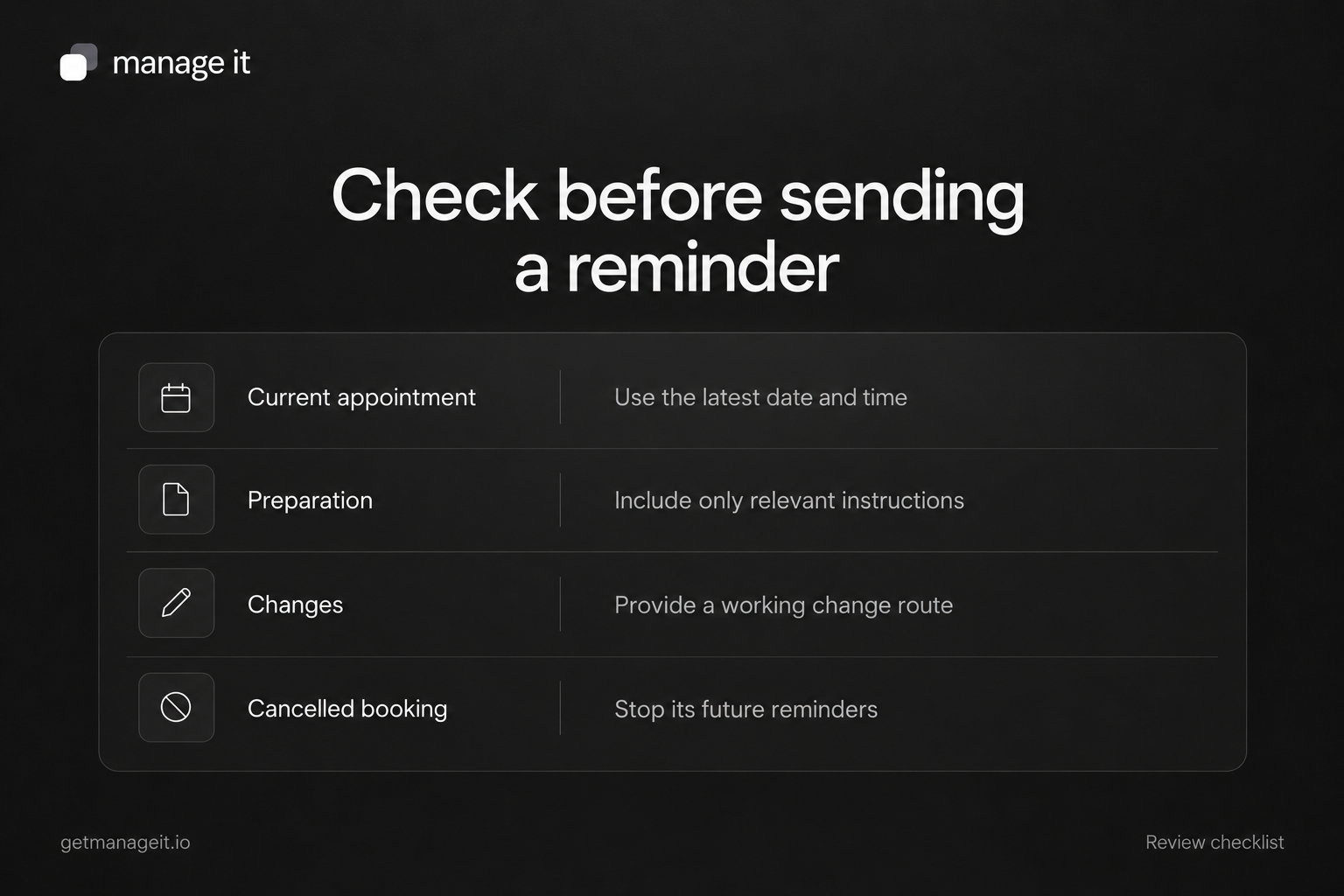
Use this pre-send review:
Status: Is the appointment confirmed, or still awaiting approval?
Details: Are the service, date, time, timezone, and location current?
Recipient: Is this the right customer and the intended contact route?
Preparation: Does the instruction apply to this appointment type?
Changes: Does the change or cancellation route work?
Reply: Who receives and monitors a customer's response?
Suppression: What stops future reminders after cancellation or another relevant change?
A delivery record does not prove the customer read the message. Staff still need a process for questions and changes that arrive elsewhere.
Configure the reminder in ManageIt
ManageIt's notification guide describes a Reminders settings tab for timing, subject, and body. Notifications settings determine which team members receive booking notifications and provide controls for the relevant email templates.
Use the supported fields in that editor rather than pasting the bracketed placeholders above as if they were working variables. Send a controlled reminder and inspect the actual date, time, location, and recipient.
The public booking guide says cancellation and rescheduling links depend on the permitted actions, notice windows, and access-token lifetime. Keep a monitored contact route in the message for customers who cannot use self-service.
Test the exceptions as part of the handoff
Create a controlled booking and inspect its reminder. Then change the time, cancel it, and make a short-notice booking. Check the future messages as well as the appointment record.
Ask the staff member who manages the diary to explain how to pause a message and correct a booking. Record any manual step they must perform.
For a new website setup, use the booking implementation guide alongside these templates. When evaluating ManageIt's scheduler, verify the actual notification controls and results in the client's account.
Your agency's contribution is a reliable communication process the business can maintain, with wording that helps the customer prepare and a person ready to handle the reply.