Client intake forms: what a service business should ask before the first appointment
Build a useful intake form for a service-business client. Includes example fields, a copyable form, and checks for the customer and staff experience.
Quick answer
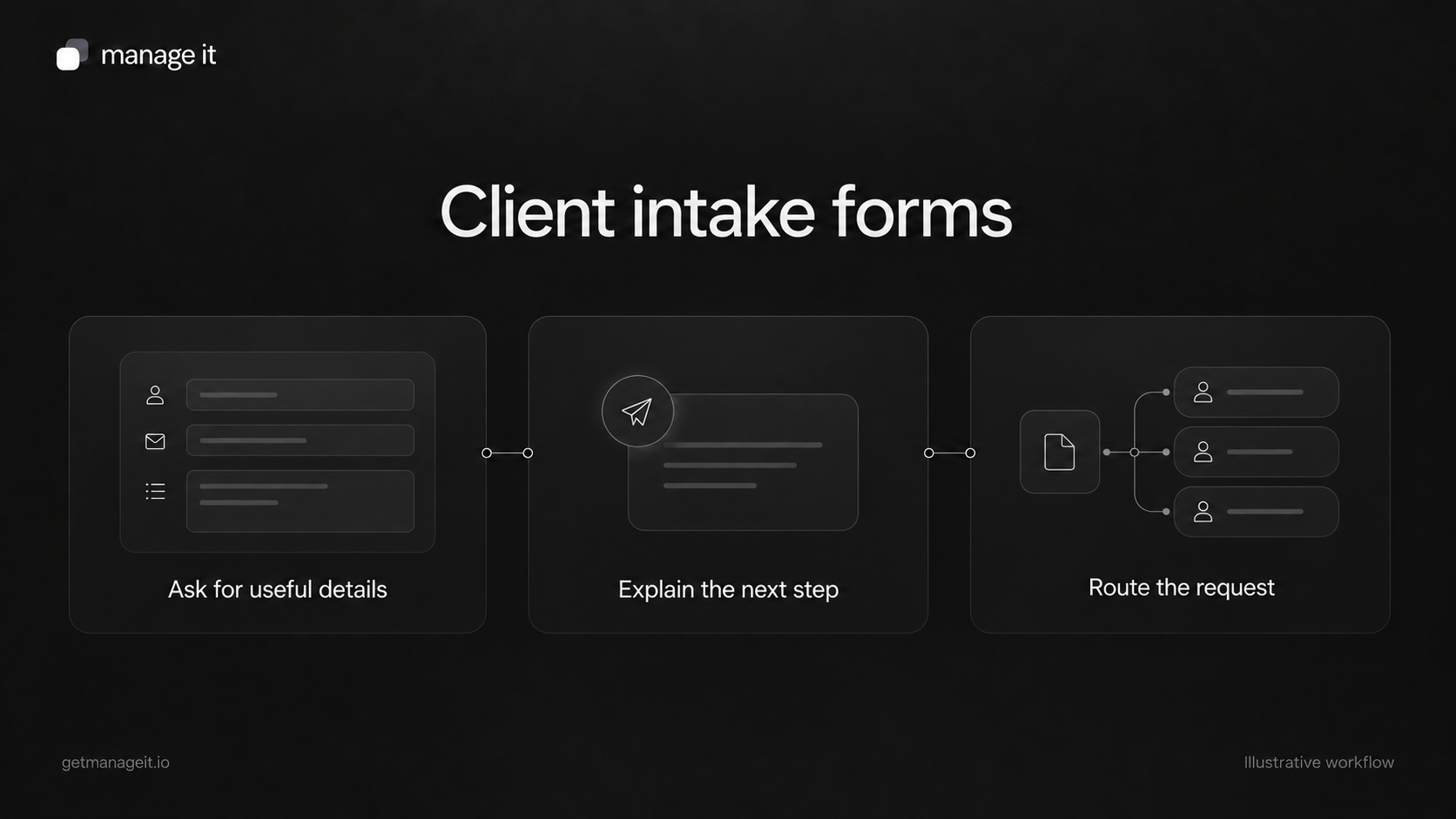
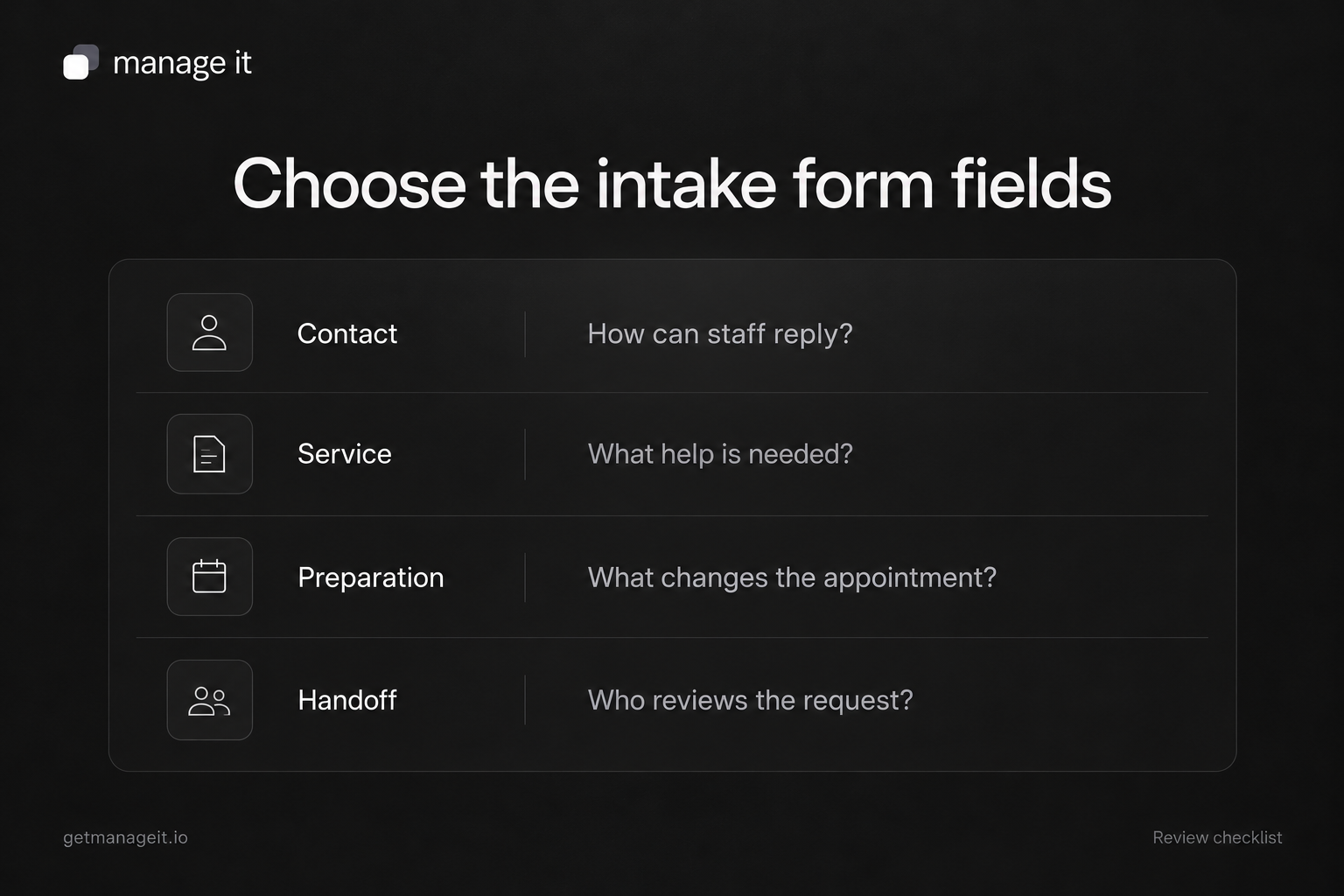
Ask for the information staff need to assess the request, prepare for the service, and reply.
Explain which answers are required and what happens after submission.
Test the form on a phone, then check the actual record and staff handoff.
An intake form should help a business understand a customer's request before the appointment or job. It should not make the customer repeat a conversation, complete irrelevant questions, or guess why the business needs their information.
When you build a form for a local-business client, start with the staff member who prepares the work. Ask what they regularly have to chase, what changes the service they recommend, and what can wait until the request is accepted.
Write the questions for the person receiving the service, using the words the business's customers use. Keep internal staff labels out of the form unless they help that person answer.
Give every field a purpose
Take an illustrative home-cleaning business. Before quoting, it may need the service area, type of cleaning, approximate property size, and a way to contact the customer. Detailed arrival or access arrangements may be more appropriate once the job is agreed.
For each proposed field, write down:
What decision the answer supports.
Who will use it.
When it is needed.
Whether the customer can reasonably know the answer.
What staff should do if the answer is missing or uncertain.
If nobody can explain how the answer affects the work, remove the field or make a specific case for keeping it.
Jotform's intake-form guidance discusses relevant questions, sections, conditional branches, and testing. Apply those ideas to the service at hand. A general form does not need the sensitive questions found in medical, financial, or other specialist intake processes.
Separate the request from the booking
An intake form may collect information for a quote, prepare an already-booked appointment, or ask the business to assess suitability. State which one it does.
“Preferred date” is a request until the business or booking system confirms it. Do not label the completion message “Your appointment is booked” if staff still need to review availability.
If the customer already has a booking, use the supported method for connecting the intake response to it. Test what happens when the customer uses a different email address or completes the form twice. Staff should be able to find the right response without guessing.
A copyable service-inquiry form
Use this original example as a starting point for a nonmedical home-cleaning inquiry. Replace the service choices and wording with the client's actual offer.
Introduction
Tell us about the cleaning you need. We'll review your request and reply using the contact details below. Submitting this form does not confirm an appointment.
Contact
Your name.
Email address for our reply.
Phone number, if the business needs it for this request; explain whether it is optional.
Preferred contact method, limited to channels the business actually monitors.
The requested service
Service area or postal code.
Type of cleaning: [the business's actual options].
Property size or the specific rooms relevant to the quote.
Preferred date or timing, clearly described as a request.
A short description of anything that changes the requested work.
Before submitting
Please include only information relevant to this request. Don't send passwords, payment-card details, or access codes through this form.
Completion message
Thanks—we've received your cleaning inquiry. [Business] will review the details and reply through [confirmed contact method]. If you need to update the request, contact [monitored route].
Add an accurate response expectation only after the business agrees what it can maintain. If the service requires more specialized information, have the appropriate person define the collection and handling process.
Keep the form understandable on a small screen
Use labels the customer understands. Explain unfamiliar choices and put instructions next to the field they describe. A field asking for “scope” may need a more concrete question, such as “Which rooms need cleaning?”
Mark required fields clearly. If an answer fails validation, tell the customer what to correct without discarding useful information they already entered. Do not rely on placeholder text as the only label.
ManageIt's conditional logic can show or hide fields using all-or-any conditions. The documentation says conditionally hidden fields are excluded from validation, even when marked required. Test every branch you configure, including a customer changing an earlier answer after filling in a later field.
Test with a phone keyboard, a longer name, an unfamiliar address format, and a customer who is unsure which service to choose. Make sure they can ask for help without completing an impossible field.
Check where the information goes
The form's thank-you screen does not prove staff received a usable request.
Submit a controlled example through the published page. Check the stored answers, attached files if any, internal notification, owner, and next action. Then ask a staff member to find the request and explain what they would do with it.
Review access as well. People need the information relevant to their work, and internal notes should not accidentally appear in customer-facing messages. Use the business's approved storage and retention approach.
ManageIt's form rules can map answers into contact and custom-record fields, while separate notification rules alert the chosen recipients. Its submission view provides read/unread status, stars, and internal notes for staff reviewing responses.
For the cleaning example, map customer details to the contact and the particular service request to a linked record if the business needs that separation. Then verify both records and the notification. The website CRM integration guide covers that handoff in more detail.
Use the form to improve the conversation
After staff have used the form, review which answers helped and which still required clarification. Remove unnecessary repetition and improve questions that customers routinely misunderstand.
When evaluating ManageIt's forms, use the client's sample request to check the actual collection and handoff. The useful result is a customer who knows what they submitted and a business that is prepared to respond.