Appointment confirmation emails: templates for confirmed and pending bookings
Quick answer
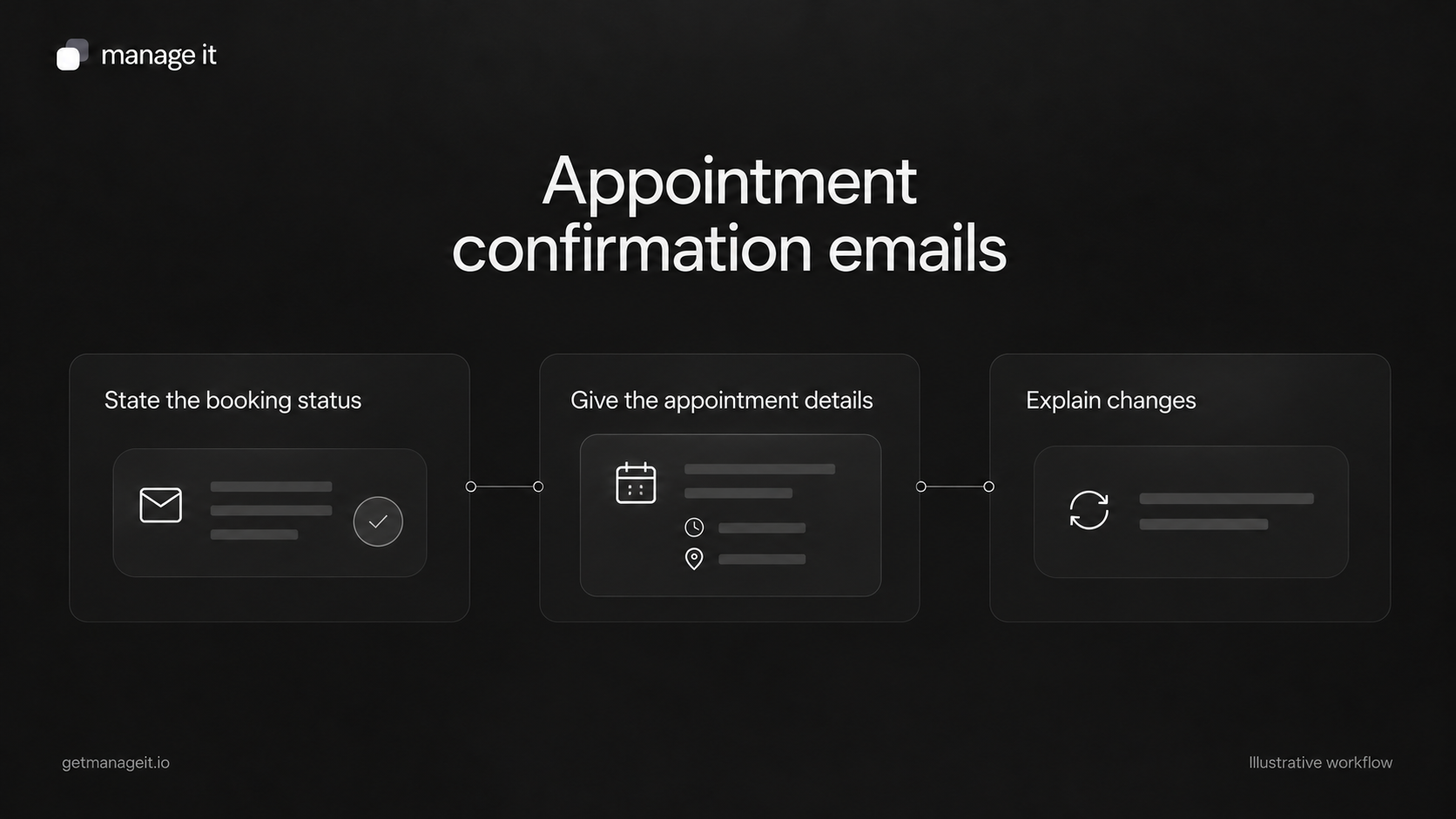
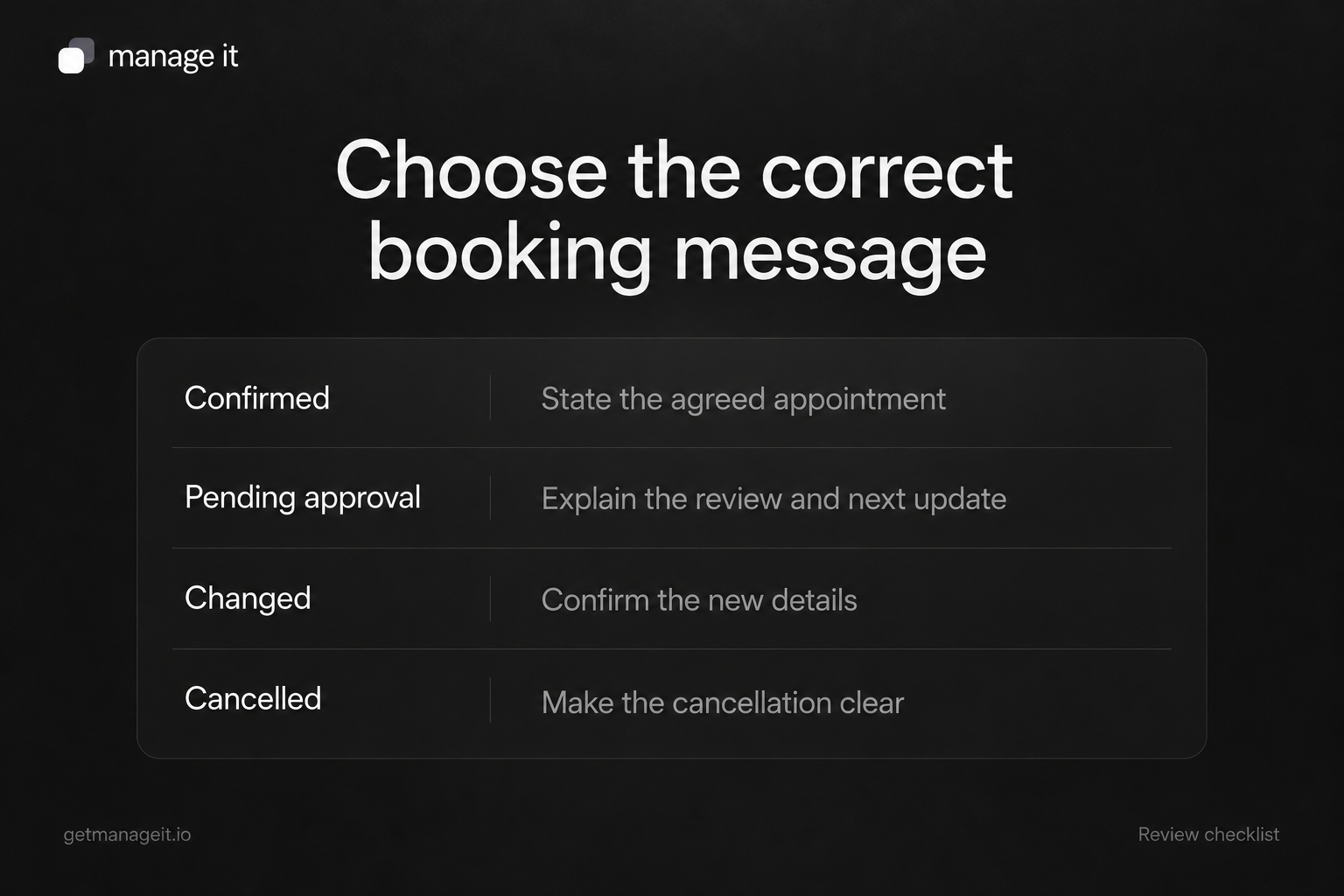
A confirmation email should state that the appointment is confirmed and give the service, date, time, location, and next step.
A request awaiting staff approval needs different wording that explains the pending status.
Test changes, calendar links, and replies so the customer receives current details and can reach the business.
Write appointment messages that state the correct status, service, time, location, and change route. Includes confirmed, pending, and rescheduled examples.
A customer submits a booking request and gets an email saying “You're booked.” Staff later decide they cannot offer that time. The first message has already created an expectation the business cannot meet.
When your agency sets up scheduling, treat the first email as part of the booking logic. Its wording should reflect the actual status, then help the customer prepare or wait for the next update.
Use the original templates below with the client's real settings. Bracketed phrases are editing placeholders, not software variable names.
Confirmed appointment
Subject: Confirmed: [service] with [business] on [date]
Hi [first name],
Your [service] appointment with [business] is confirmed.
Date: [readable date]
Time: [time and timezone where relevant]
Location: [verified address, phone arrangement, or meeting link]Before the appointment, please [relevant preparation, if needed].
To request a change, use [verified change route]. If you have a question, contact [monitored contact].
We look forward to seeing you,
[business or staff name]
Delete the preparation sentence when there is nothing useful to add. For an on-site service with an arrival window, state the window the business actually agreed rather than inventing an exact arrival time.
Request received, awaiting approval
Subject: We received your [service] appointment request
Hi [first name],
We've received your request for [service] on [requested date] at [requested time and timezone]. This appointment is awaiting confirmation from [business].
[Explain the actual review process and when the business expects to respond, if that commitment has been agreed.]
If you need to update the request, contact [monitored contact route]. We'll send the confirmed details once the appointment is approved.
Thanks,
[business name]
Don't leave the bracketed process instruction in the final email. Replace it with the real arrangement or remove it if the business cannot make a response-time commitment.
ManageIt's scheduler settings include Requires Approval. With that enabled, new bookings begin as pending approval. The notifications guide distinguishes that notice from the later confirmation. Configure the wording for both states.
A rescheduled appointment
Subject: Updated appointment: [service] on [new date]
Hi [first name],
Your [service] appointment has been moved to the following time:
New date and time: [new date, time, and timezone]
Location: [current location or joining instructions]This replaces the appointment previously scheduled for [old date and time]. Please use the updated details and check your calendar entry.
For questions, contact [monitored route].
[business name]
A changed appointment needs more than a fresh date in the subject line. The customer should understand that the old time has been replaced. Test the calendar link or attachment as well as the visible message.
A cancellation message
Subject: Canceled: [service] appointment on [date]
Hi [first name],
Your [service] appointment for [date and time] has been canceled.
[Include the relevant agreed next step, such as contacting the business or choosing another available time.]
If you have a question, contact [monitored route].
[business name]
Keep cancellation facts separate from any fee, refund, or rescheduling policy. Include those details only when they accurately apply to this booking and the business has approved the wording.
Check the details behind every message
Review these fields in a controlled booking:
Status: Does the subject and body match confirmed or pending approval?
Time: Does the customer see the intended local time and an understandable timezone?
Location: Is this an address, phone appointment, or working meeting link?
Calendar: Does adding the event produce the correct time and details?
Changes: Can the customer use the supplied route under the configured rules?
Replies: Does a response reach the staff member or inbox the business monitors?
Acuity's notification guide distinguishes confirmation, cancellation, rescheduling, and reminder messages. Inspect those as separate steps in whichever scheduler the client uses.
Test the lifecycle in ManageIt
ManageIt's public booking documentation describes confirmation details, calendar downloads, and optional cancellation or rescheduling links. Those change links depend on settings and token lifetime, so give the customer a contact route for cases the link cannot handle.
The booking management guide says a reschedule marks the original booking as rescheduled and creates a new booking. Check both records and the future messages when testing; don't assume an old reminder follows the new appointment automatically.
Use appointment reminder templates for later preparation messages. The confirmation's job is to establish what has been arranged now. Your handoff is complete when staff can recognize each status, send the right message, and handle the customer's response.